
How to Set Time on Pocket Option for Enhanced Trading Performance
Time management is a crucial aspect of trading on digital platforms. Understanding how to set time on Pocket Option can significantly impact your trading outcomes. This comprehensive guide will walk you through the essential steps and strategies for optimal time settings.

How to Set Time on Pocket Option
Correctly setting the time on the Pocket Option platform plays an important role in successful trading. The selected time zone affects the display of trade times, charts, and transaction deadlines.
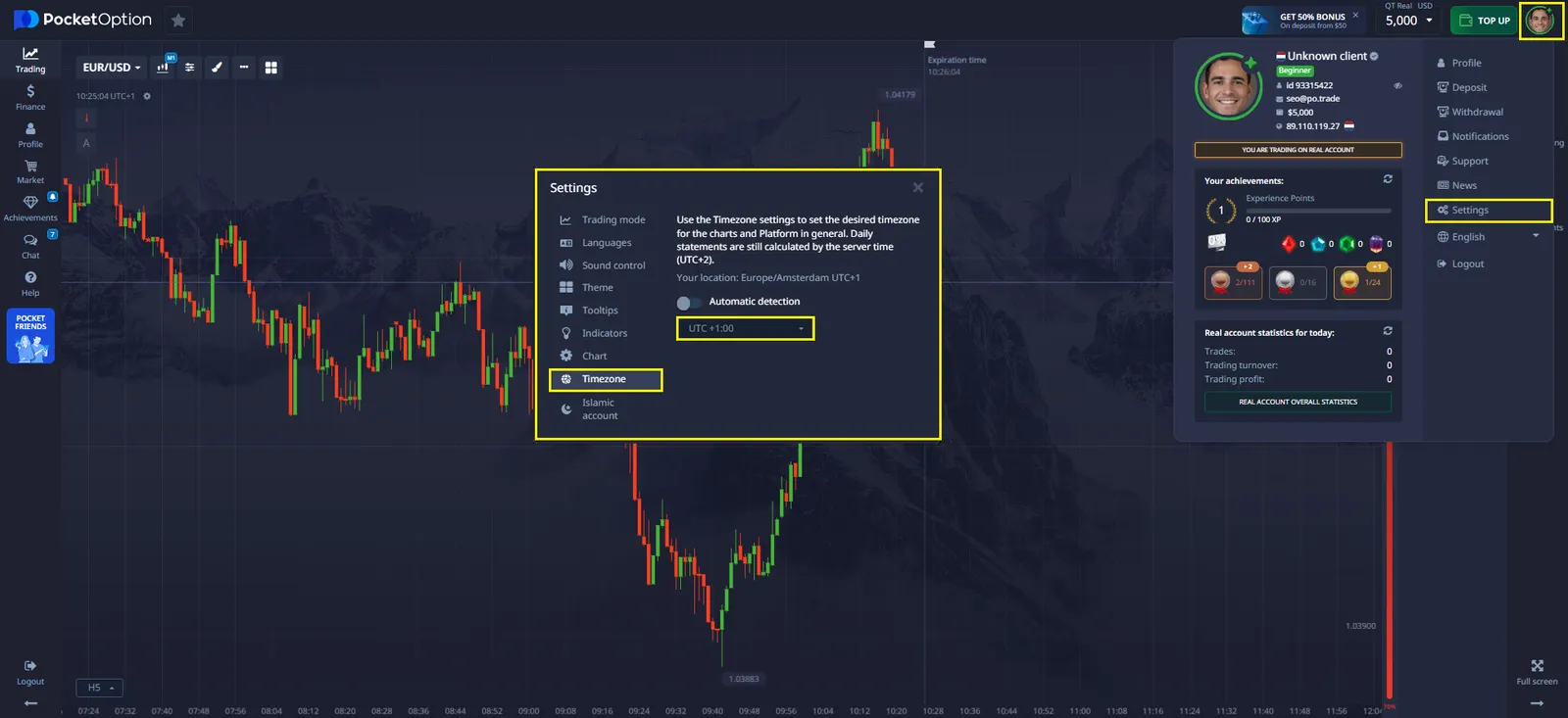
To set the time on Pocket Option, follow these steps:
How to Adjust the Time Zone on Pocket Option
- Open Account Settings
- Click on your avatar in the upper-right corner of the screen.
- Go to Settings
- Select the "Settings" section.
- Choose Your Time Zone
- Navigate to the "Timezone" tab and specify the required setting.
Once the changes are saved, the platform will update all displayed time data.
Why Correct Time Settings Matter
Setting the time zone correctly is important for several reasons:
- Accurate Trades – The trade time is recorded according to the local time zone.
- Chart Synchronization – A correct time zone ensures accurate interpretation of price quotes.
- Convenient Trading – Users see the time in a familiar format.
Time Zone Settings Table
Depending on the region, users can select any time zone available on the platform.
| Region | Time Zone | Example Time Format |
|---|---|---|
| New York, USA | UTC-5 | 12:00 PM (GMT-5) |
| London, UK | UTC+0 | 17:00 PM (GMT+0) |
| Moscow, Russia | UTC+3 | 20:00 PM (GMT+3) |
| Tokyo, Japan | UTC+9 | 02:00 AM (GMT+9) |
How to Change Time on Pocket Option
If you initially selected the wrong time zone, you can change it anytime through your account settings.
Ways to Adjust the Time
- Through the browser version – Log into your account and adjust the settings via the menu.
- Through the mobile app – The setup process is the same as in the web version.
Common Errors When Setting Time
- Synchronization error – If the time has not updated, try refreshing the platform.
- Incorrect time zone selection – Make sure the correct region is selected.
- Time change not applied – Check your internet connection.
Voir plus:howplatformInterestingTrading platforms